SAMAwards User Guide
Back to SAMAwardsGetting started
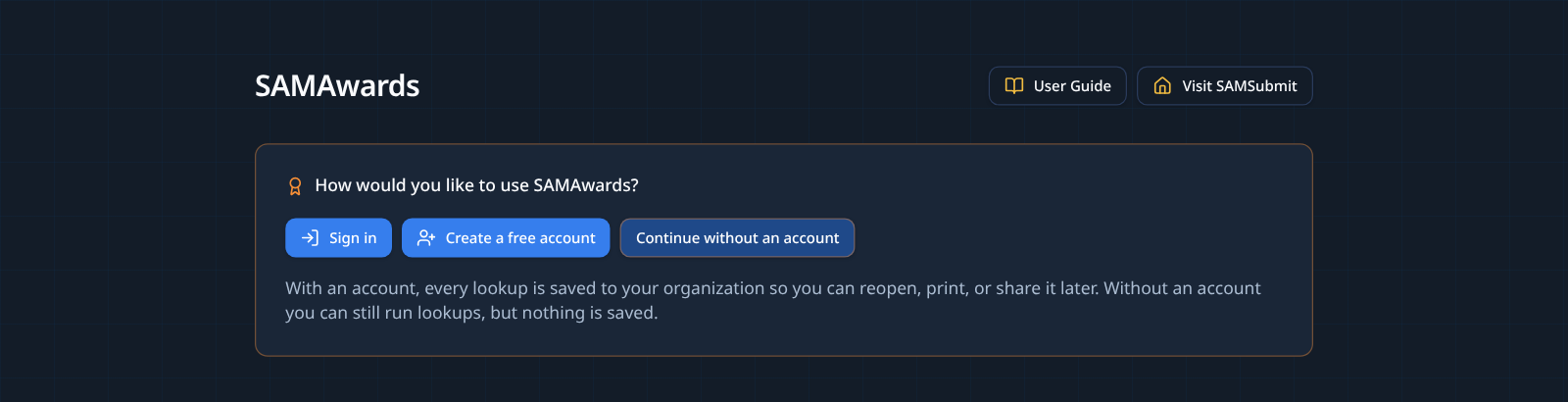
SAMAwards is for signed-in users. You do not need a paid subscription: a free account is all it takes. When you open SAMAwards, choose how you want to sign in:
- Sign in if you already have a SAMSubmit account.
- After signing in, add your own SAM.gov API key (next section). Searches will not run without it.
- Create a free account to save every lookup to your organization. Building, analyzing, and previewing are free; clean, watermark-free PDF downloads and emailing or submitting responses require paid access.
Required: add your own SAM.gov API key
Every SAMAwards search runs with your own free SAM.gov API key, so you always have your own SAM.gov daily allowance. Getting one takes about five minutes from your SAM.gov Account Details page. Paste it into the key box on the SAMAwards page (or on any SAM Submit page) and select Save key. Your key is saved on your account, so it fills in automatically on any computer you sign in on. Only you can read it.
Step-by-step: get your SAM.gov API keyContract Awardee and Offers Received
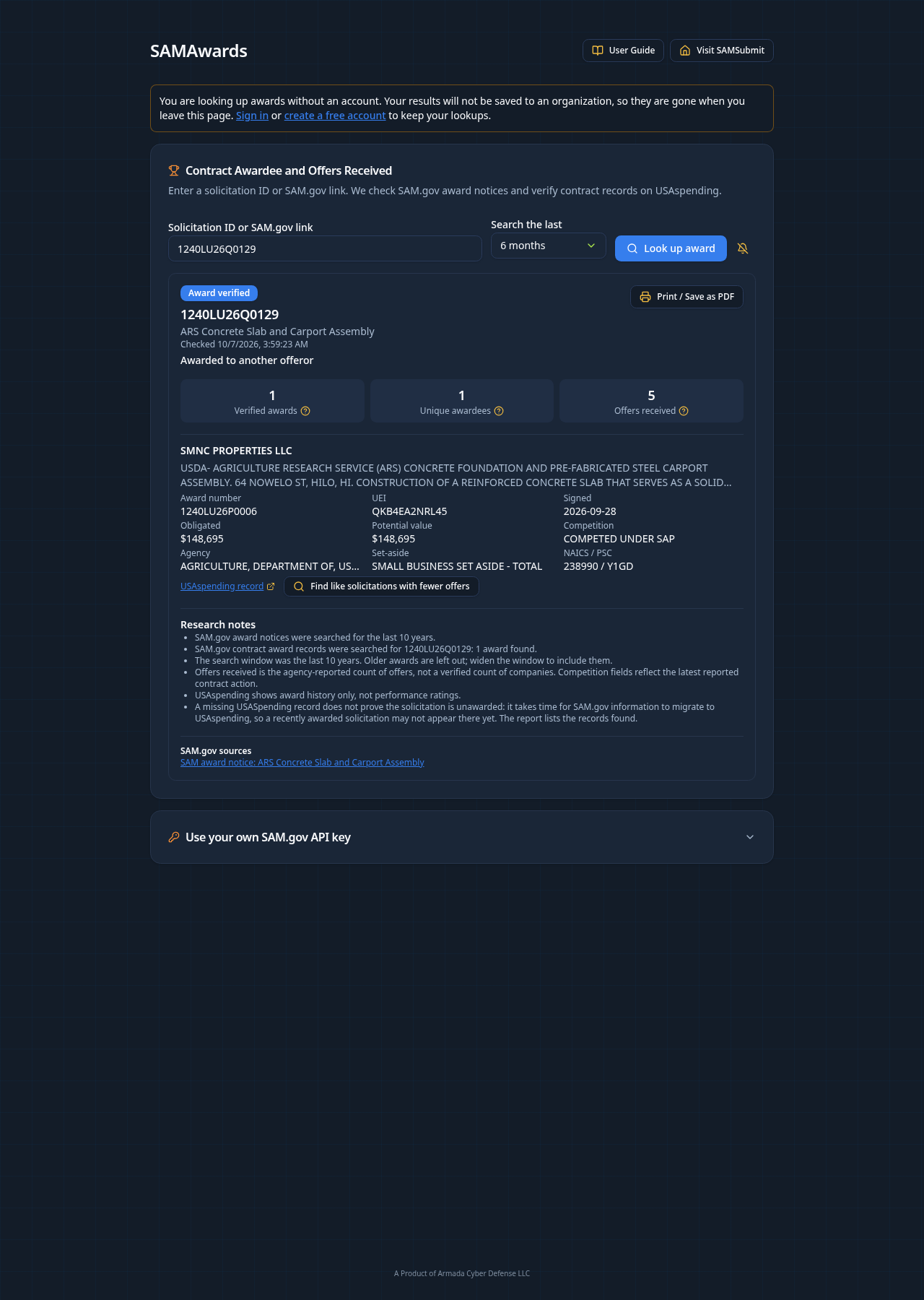
Enter a federal solicitation ID (for example, the ID on a SAM.gov notice) and run the lookup. SAMAwards checks SAM.gov award notices first, then verifies and supplements the result with USAspending.
- The report shows the awardee, the award value, and how many offers were received.
- Use "Search the last" to control how far back the lookup goes. Six months is the default; wider windows take longer.
- Not sure what an ID looks like? Use the verified example shown in the input's placeholder.
- If USAspending has nothing yet, that does not prove the solicitation is unawarded. It takes time for SAM.gov information to migrate to USAspending, so a recent award may not appear there yet.
- Every lookup is saved to your organization, and you can reopen, print, or delete it from the history.
Filter for solicitations with fewer offers
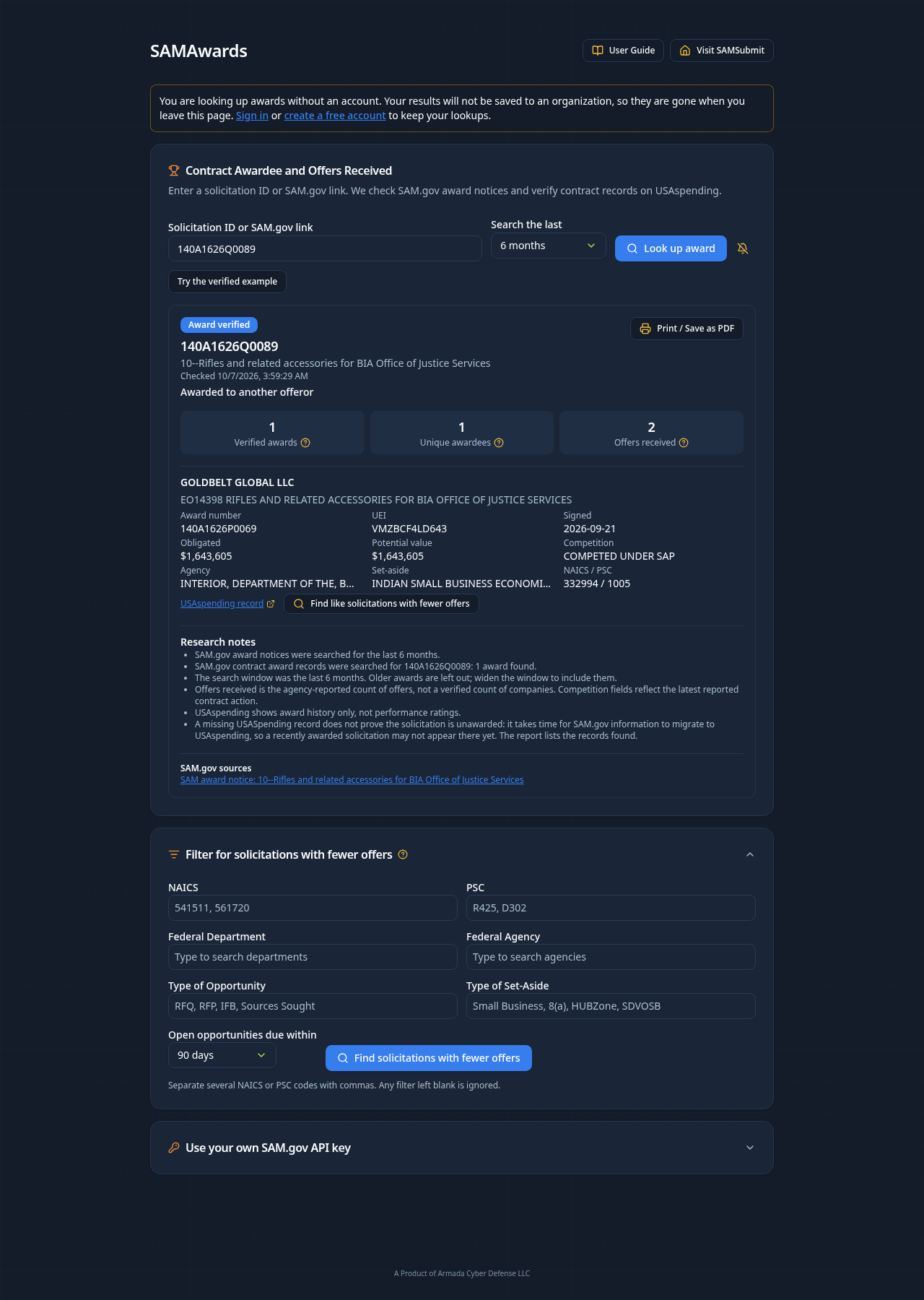
After you run your own lookup, this section appears. It searches SAM.gov for active, open opportunities that match your filters, sorted so the ones due soonest are listed first.
- Filter by NAICS code, PSC code, Federal Department, Federal Agency, Type of Opportunity (RFQ, RFP, IFB, and more), and Type of Set-Aside. Start typing in any field to search its list.
- "Open opportunities due within" sets how far out the response deadline can be.
- On any award result, "Find like solicitations with fewer offers" fills these filters from that award and starts the search automatically.
- If nothing comes back, the suggestions shown let you widen the search with one click, for example by removing the PSC or agency filter.
A Product of Armada Cyber Defense LLC